You can connect to ISC using your desktop computer: Windows, Mac, Linux or mobile device: IOS, IPad, IPhone, android.
You can access ISC web interface from www.isc.ro.
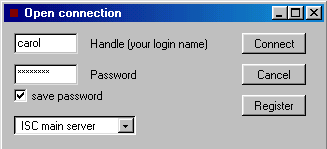
Fill out the Handle and Password fields with your ISC handle, and password.
If you are not registered click Register button.
ISC has two servers, you can connect to the main server or to the backup
server.
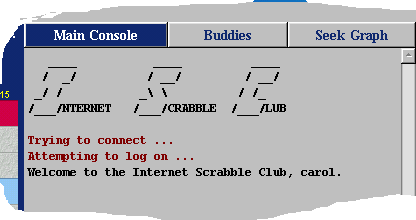
Once you are connected to the server you should see a welcome message.
Start a game
Sending a challenge to all players
The easiest way to start a game is by sending a challenge to all players.
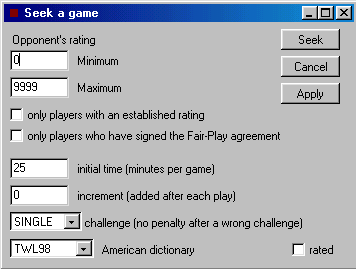
To do that click on Seek a game button or select from the menu
bar Game and Seek a game.
You can also type the seek command manually in the text window, using
the seek
command.
Seek a game window will let you set some parameters before sending
the challenge:
- 'opponent's rating' If you set a rating range make sure that your
own rating is between minimum and maximum. The average rating on ISC
is around 900. Expert players have over 1800. If you just started the
system will set a range for you by default.
- the next 2 boxes let you avoid players with a provisional
rating and players who have not signed the fairplay
agreement.
- 'initial time' is the time you have when the game starts.
- 'increment' is the time in minutes added after each play. If you don't
want to use increment let it 0.
- 'challenge' controls what happens when you challenge a play and you
are wrong. If challenge is SINGLE there is no penalty. If challenge
is DOUBLE you will pass that turn and your opponent plays again.
-'rated' if the rated box is unchecked the game will not count in your
stats and your rating will not change if you win or lose.
Once you send the challenge you will see the number of players who
received your challenge. When another player accepts your seek the game
will automatically start.
Accepting a challenge
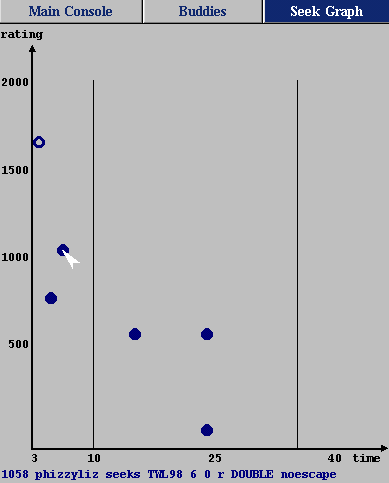
To see all the challenges available at any given time, go to Seek
Graph. Each of the dots on the graph represents a pending request
for a game. Clicking on a dot will accept that particular game request.
Moving your mouse over a dot will display the information about that
seek on the bottom of the seek graph:
- player's rating
- player's handle
- dictionary
- initial time, increment time (added after each play)
- challenge rule (single or double)
- noescape if noescape is ON.
Faster games are listed to the left, slower ones to the right. The
vertical lines mark faster games (less than 10 mintes), normal games,
and slow games (more than 35 minutes). The highest rated players are
listed on the top, lower rated ones near the bottom.
A hollow circle represents a request for an unrated game. A square
dot represents a request sent by a computer player.
Sending a challenge to a specific player
Instead of sending a general game request to all players, you can challenge
a specific player using the match
command. To match someone left click on a name and select Match
from the menu or select from the menu bar Game and Match.
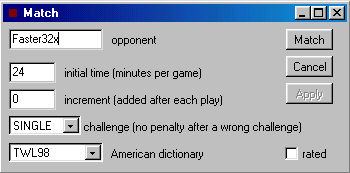
The match window let you fill out the form with the desired opponent's
name and game parameters.
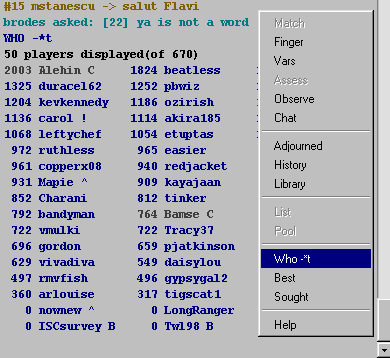
To get a list of players who are not playing click on a empty space
in the main console window and select Who from the menu.
To challenge someone left click on a name and select Match option from
the menu.
Playing a game with a computer player
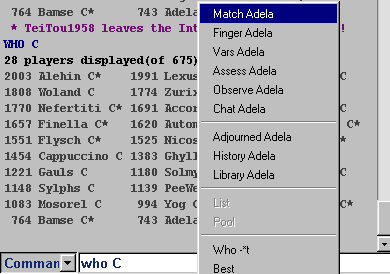
To see what computers are available type who
C. Computers on ISC have a C label after their names. If they don't
have a (*) you can start a game by clicking on their name and selecting
Match from the menu. The game will start immediately with the
time controls and the dictionary that you proposed.
You can also start a game by accepting their seek requests.
Every time a computer is free sends a seek request. To see all seek
requests go to Seek Graph and look for square dots. You can start
a game by clicking on the dot. If you accept their seek request the
game will have the time controls and dictionary proposed by computer.
Play a game
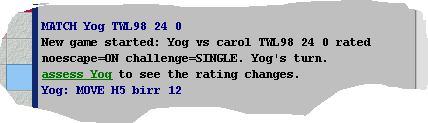
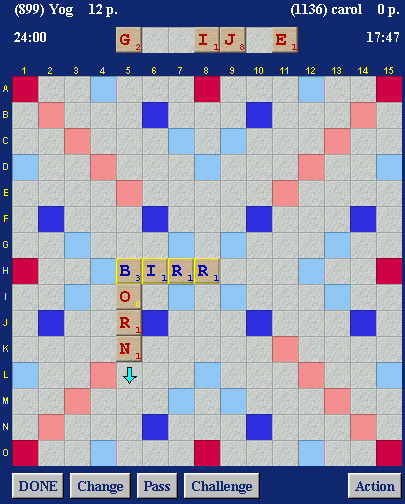
When you start a game in the main console window you can see the parameters
for that game. Parameters are set by the player who made the challenge: dictionary - in this screen shot TWL98 time - initial time 24 minutes and increment time 0 minutes.
Increment is added after each play. rated - an unrated game does not count in your stats and does
not change your rating, a rated game does. noescape - if a player is disconnect and noescape is ON the game
will be adjudicated by the system after a few minutes. If noescape is
OFF the game is adjourned and you can resume it later by matching your
opponent. challenge - challenge controls what happens when you challenge
a word and you are wrong: for SINGLE there is no penalty, for DOUBLE
you pass that turn.
When you start a game the scrabble board is updated. For each player
is dispayed the rating(in brakets), ISC handle, current score and time
left. The player who goes first is always in the left side and has blue
tiles.
To place a word click on the starting point. An arrow will indicate
the starting position and the direction. Use keyboard to enter your
word.
You can make moves by dragging tiles with your mouse. ? marks are blanks
and they can replace any letter, right or left click on a blank until
you get the desired letter.
In the right down corner of the main window you can see the score for
your play as you place your tiles.
To submit your word press Enter key or click DONE button.
Change button will open a new window where you can exchange
some or all of your tiles. You can exchange tiles if there are at least
7 tiles left.
Click Challenge button to challenge your opponent's last play. Action button gives you 3 options:
- resign to resing the game. You will lose at a standard score
difference of 200 points.
- abort. An aborted game will not count in your stats and doesn't
change your rating. You can abort the game directly if there isn't a
play made by each player otherwise your opponent must agree.
- adjourn will let you interrupt the game. You can resume it
later by matching your opponent. An adjourned game is kept for 3 days
if not resumed it is erased. Your opponent must agree in order to adjourn
a game.
The status bar at the bottom of the main window displays the number
of tiles left. When there are less than 40 tiles you can see them all.
Your opponent's tiles are included but not counted. In the right side
you can see the score of your play as you place the tiles.
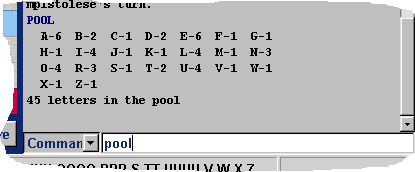
You can always see the tile left using pool
command
Observe a game
You can observe
any game in progress. If you know the handle of the player that you
want to observe just type observe folowed by his handle.
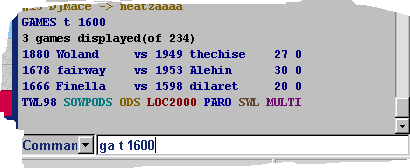
You can get a list of games in progress using games
command. Use "games t 1600" to get a list of TWL98
games where average rating of the players is over 1600. Click on any
name and select Observe from the menu to observe that game.
You can see who is observing a certain game using "allobservers"
command. Use "all alehin" to see who is observing Alehin's
game.
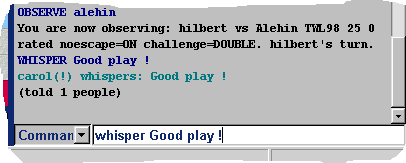
While you are observing a game you can communicate with all other players
observing the same game as you, using whisper
command: You can use kibitz
command to send the message to all observers and the players.
Find a player
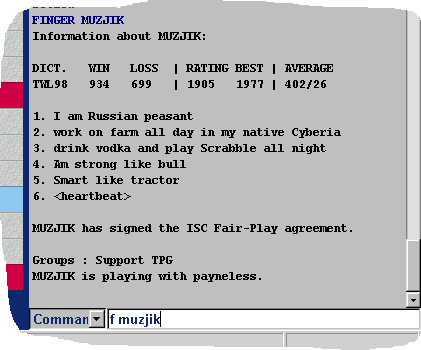
Display information about a player
Finger
command lists the public information about the specified player. To
see information about muzjik type "finger muzjik". You can also
click on a name and select finger option from the menu.
The buddies list
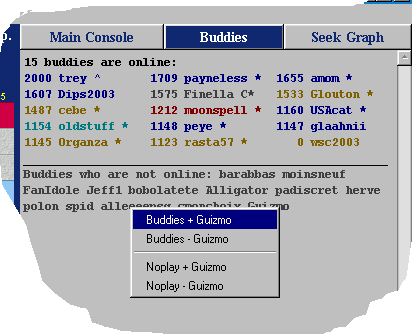
On ISC you can have a list of friends. Buddies panel displays information
about friends who are online and what they are doing. When a friend
joins or leaves ISC you will be notified.
To add someone in your buddies
list right click on a name and select buddies + option from the
menu. To remove someone select buddies -.
You can also use buddies command to edit your list, type: budd + guizmo to add guizmo budd - guizmo to remove guizmo budd to see the list
A symbol comes after the name giving some information about the status
of the player: * - involved in a game ^ - observing a game E - examining a game C - computer player B - robot ! - ISC admin H - ISC helper
The players are displayed with different colors according to which dictionary
they use:
black - computer players
blue - TWL98 players
aqua - SOWPODS
yellow - ODS
red - LOC2000
light blue - PARO
brown - SWL
Players online
You can use who
command to get a list of players currently online. There are a number
of optional flags, that select which players to show. You can also list
only players in a certain rating range, type:
"who t" - to get a list of TWL98 players.
"who s 1100 1200" to get a list of sowpods players
with ratings in the range 1100 to 1200.
Communicate on ISC
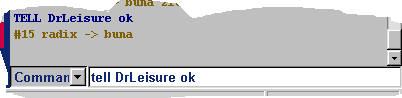
The tell
command allows you to send a personal message to another ISC member.
Use tell handle message, where handle is the player you want
to talk to, and message is your message.
Every person who has sent you a tell or to whom you have sent a tell
is kept in a list. To avoid typing tell handle each
time you send a message, press the Insert key until
you get the person's name.
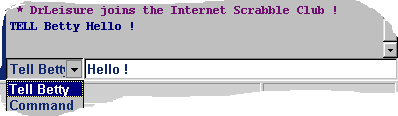
To talk with your opponent select from the pull down menu Tell
, type your message and press Enter key.
The message
command is a way to send a message to someone who is not logged in.
You cannot withdraw a message that you have sent to someone. The message
will be diplayed when that person logs in. To leave a message for carol
use:
message carol did you get my message?
Channels on ISC are used for group discussion. You can join
and leave any channel, and talk to all people in a channel. You can
be in all channels at one time.
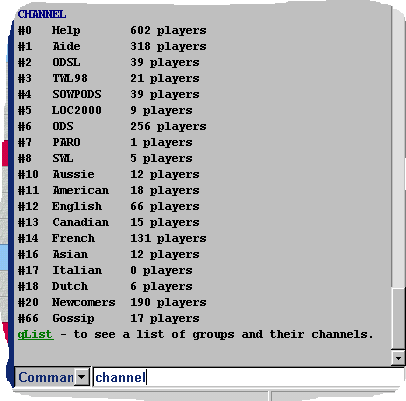
Use "channel"
comamnd to get a list of channels and their numbers.
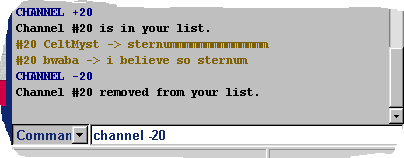
Use "channel +20" to join channel 20 and hear what's said on
it. Use "channel -20" to leave channel 20.
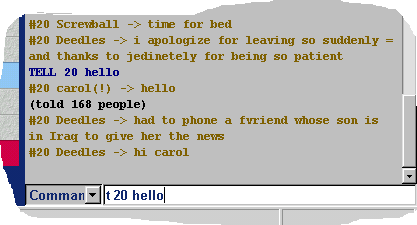
Use "tell 20 Hello" to say "Hello" on channel 20. The command
will print the number of players who received your message.
Use "vars name" to see what channels a person is in.
Use "finger 2" to see who is listening channel 2.
The rating system
A rating is an approximate measure of a player's strength. A higher
rating means a better player. On ISC the average rating is around 900,
expert players are around 1800.
The formula used for calculating rating changes depends if you have
an established rating or a provisional one.A player is provisional
if he doesn't have 11 rated games. To check how many rated games you
have type on command finger.
Only the games played against established players are rated. After completing
your first game against an established player you will get a provisional
rating.
provisional vs provisional If both players have a provisional rating the game will not
be rated, and it will not count in stats.
provisional vs established The formula used for the provisional player is
based on the average rating of his opponents and the number of his own
wins and losses. This formula can produce strange results since you
can lose points after winning a game if your opponent’s rating is below
average.
For a provisional player the BEST column
in the finger info shows the average rating of the opponents.
If this average is 1231 and you won 4 games and lost 4,
your rating will be 1231. If you won 3
games and lost 0, your rating will be 1629.
If you’re the established player, the rating
points that you would normaly win it will be divided by (11 - n),
where n is one plus the number of games your opponent has played.
established vs established The rating formula used when both
players have an established rating is based on the opponent’s rating
and the score difference. You can win or lose anywhere between 0
and 40 points.
If your opponent has the same rating as you and you win with a score
difference of 1 point, you will get 11 rating points.
For a score difference of 200 points you will get 21 rating
points.
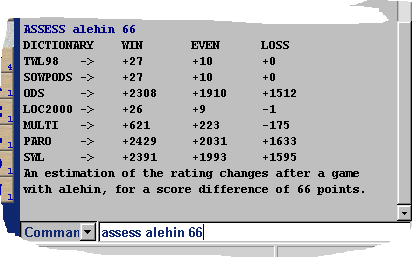
You can see how your rating will be affected
before the game starts. Click on the person’s name and select Assess.
Alternatively, you can type assess
name in the command mode.
The assess command will show the rating changes for every dictionary.
rating
- to see the formula used for calculating rating changes
ISC commands
There is a set of help files that explain all of the features of the
Internet Scrabble Club. You can access them here as html files or on
ISC server using the help command.
Most commands also have a menu equivalent. The help files explain how
to use a command by typing it or using the interface. To see a specific
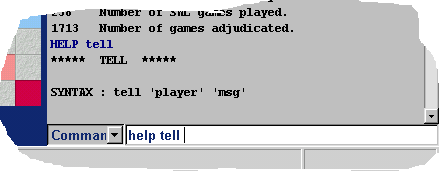
help file type help followed by the name of the command. For
example, type help tell for an explanation of the tell command.
1) The Internet Scrabble Club is down or there is a problem with
the internet route.
If you get this message when you try to connect very likely the problem is your firewall or antivirus.
The Internet Scrabble Club is rarely down. You can always check how
many players are connected by accessing the main
page.
If the server is not down disable your firewall or proxy and try to
connect again. We can not assist you in configuring your firewall or
antivirus.
Contact us
If you are asking for help try to describe your problem in details.
If you have problems connecting just to mention you can not connect
is not enough.